window.dataLayer = window.dataLayer || []; function gtag(){dataLayer.push(arguments);} gtag('js', new Date());gtag('config', 'UA-141884085-1'); gtag('config', 'AW-761820283');

DIY-Robotics

About DIY-Robotics

This author has not yet filled in any details.
So far DIY-Robotics has created 131 blog entries.

Satellite – User Manual

Satellite Cells Documentation from august 2019

SATELLITE – USER MANUAL

This is a detailed guide to help people with everything related to the Comet robotic cell. This user manual includes critical information about security, maintenance, the robotic cell components, the Teach Pendant controller and about various other topics.

OVERVIEW OF THE CONTENT IN THIS USER MANUAL

SECURITY AND RISK MANAGEMENT

  1. Operator’s responsabilities
  2. Security components
  3. Lockout procedure

ROBOTIC CELL COMPONENTS

  1. Robotic cell description
  2. Fanuc robot
  3. Lockable side doors
  4. Tower light
  5. Command box
  6. EUROMAP connectors (optional)
  7. 24V electrical command panel
  8. Electrical power panel
  9. Electrical hydraulic lifting system
  10. Pneumatic system

TEACH PENDANT AND PROGRAMS

  1. HMI
  2. Basic programs
  3. Space check function
  4. Dual check safety (DCS)
  5. Alarms

PRODUCTION IN AUTO MODE

  1. Command panel or box
  2. Cell door lock procedure
  3. Starting production in Auto mode

MAINTENANCE

  1. Procedure for moving the cell
  2. Fanuc robot

Satellite – General Documentation

Satellite Cells Documentation from august 2019

SATELLITE – GENERAL DOCUMENTATION

This is a detailed guide to help people better understand our Satellite robotic cells. This document includes key information about how to use this robotic cell, how to transport it and various other technicals characteristics.

OVERVIEW OF THE CONTENT IN THIS DOCUMENT

  1. Terms of use
  2. Descriptive plate and technical characteristics
  3. Conformity declaration
  4. Robotic Cell Description
  5. Satellite cells Isometric images
  6. Satellite Cells 3D image
  7. Multiples cells and machines layout possibilities
  8. Transporting the robotic cell

Comet – User Manual

Comet Cells User Manuel

COMET – USER MANUAL

This is a detailed guide to help people with everything related to the Comet robotic cell. This user manual includes critical information about security, maintenance, the robotic cell components, the Teach Pendant controller and about various other topics.

OVERVIEW OF THE CONTENT IN THIS USER MANUAL

SECURITY AND RISK MANAGEMENT

  1. Operator’s responsabilities
  2. Security components
  3. Lockout procedure

ROBOTIC CELL COMPONENTS

  1. Robotic cell description
  2. Fanuc robot
  3. Lockable side doors
  4. Tower light
  5. Command box
  6. EUROMAP connectors (optional)
  7. 24V electrical command panel
  8. Electrical power panel
  9. Electrical hydraulic lifting system
  10. Pneumatic system

TEACH PENDANT AND PROGRAMS

  1. HMI
  2. Basic programs
  3. Space check function
  4. Dual check safety (DCS)
  5. Alarms

PRODUCTION IN AUTO MODE

  1. Command panel or box
  2. Cell door lock procedure
  3. Starting production in Auto mode

MAINTENANCE

  1. Procedure for moving the cell
  2. Fanuc robot

Comet – General Documentation

General documentation image

COMET – GENERAL DOCUMENTATION

This is a detailed guide to help people better understand our Comet robotic cell. This document includes key information about how to use this robotic cell, how to transport it and various other technicals characteristics.

OVERVIEW OF THE CONTENT IN THIS DOCUMENT

  1. Terms of use
  2. Descriptive plate and technical characteristics
  3. Conformity declaration
  4. Robotic Cell Description
  5. Comet cells Isometric images
  6. Comet Cells 3D image
  7. Multiples cells and machines layout possibilities
  8. Transporting the robotic cell

Astro – User Manual

mceclip0 leaflets

This is a detailed guide to help people with everything related to the Astro robotic cell. This user manual includes critical information about security, maintenance, the robotic cell components, the Teach Pendant controller and about various other topics.

OVERVIEW OF THE CONTENT IN THIS USER MANUAL

SECURITY AND RISK MANAGEMENT

  1. Operator’s responsabilities
  2. Security components
  3. Lockout procedure

ROBOTIC CELL COMPONENTS

  1. Robotic cell description
  2. Fanuc robot
  3. Command box
  4. EUROMAP connectors (optional)
  5. 24V electrical command panel
  6. Electrical power panel
  7. Electrical hydraulic lifting system
  8. Pneumatic system

TEACH PENDANT AND PROGRAMS

  1. HMI
  2. Basic programs
  3. Space check function
  4. Dual check safety (DCS)
  5. Alarms

PRODUCTION IN AUTO MODE

MAINTENANCE

  1. Procedure for moving the cell
  2. Fanuc robot

Astro – General Documentation

mceclip0 leaflets

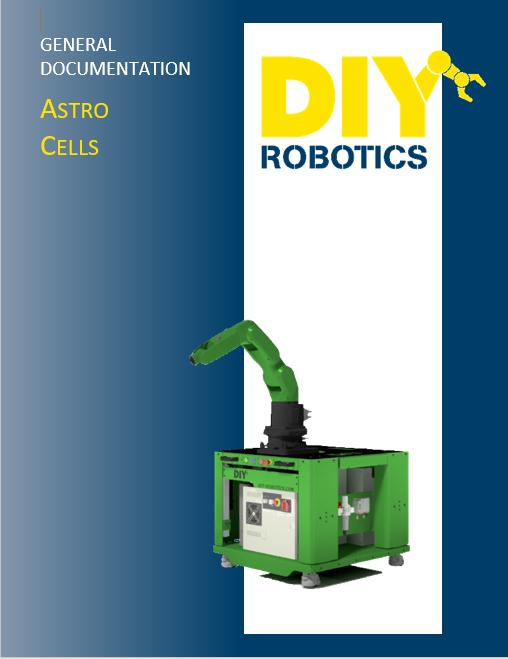
This is a detailed guide to help people better understand our Astro robotic cell. This user manual includes critical information about how to use this robotic cell, how to transport it and various other technicals characteristics.

OVERVIEW OF THE CONTENT IN THIS DOCUMENT

  1. Terms of use
  2. Descriptive plate and technical characteristics
  3. Conformity declaration
  4. Robotic Cell Description
  5. Astro-33 Isometric images
  6. Astro-33 3D image
  7. Transporting the robotic cell

FANUC Videos – Set up FANUC iRVision simulation

Set up FANUC iRVision simulation

This video explains how to setup iRVision simulation using FANUC ROBOGUIDE.  ROBOGUIDE is a full featured 3D simulation package for FANUC robots.  When iRVision simulation is enabled with-in a ROBOGUIDE workcell a user can create virtual iRVision cameras and actually guide the virtual robot using the virtual camera with iRVision.  Using iRVision simulation during the engineering phase of any vision guided application can save time and money.  2D, 3DL and 3D Area Sensor all have virtual versions with-in ROBOGUIDE.

Click here for more informations about -> FANUC

FANUC Videos – Set up a FANUC iRVision 2D Fixed Camera

Set up a FANUC iRVision 2D Fixed Camera

This video explains how to setup iRVision simulation using FANUC ROBOGUIDE.  ROBOGUIDE is a full featured 3D simulation package for FANUC robots.  When iRVision simulation is enabled with-in a ROBOGUIDE workcell a user can create virtual iRVision cameras and actually guide the virtual robot using the virtual camera with iRVision.  Using iRVision simulation during the engineering phase of any vision guided application can save time and money.  2D, 3DL and 3D Area Sensor all have virtual versions with-in ROBOGUIDE.

Click here for more informations about -> FANUC

FANUC Program Adjust Utilities – Making point adjustments with utility function “Prog Adjust”

Making point adjustments with utility function “Prog Adjust”

This procedure is used to change a series of point positions in a program.

You will find a downloadable

PDF icon
PDF version at the end of this page.

  • DURATION

+/- 15 minutes

  • RECOMMENDATION

Create a new program version to make sure you don’t lose your original points.

  • WARNING!

Make sure to respect the right referential(?) for the “Prog Adjust”.

  • DANGER

A bad adjustment could lead to robots or tooling collisions.

STEP BY STEP

  1. PRESS –> [ SELECT ]
  2. Choose the program you want to make user frame reference changes. (see screenshot)
  3. PRESS –> [ ENTER ]
  4. PRESS –> [ MENU ]
  5. SELECT –> [ 1 ] 1 UTILITIES
  6. SELECT –> [ 5 ] 5 Prog Adjust
  7. PRESS –> [ F2 ] DETAIL
  8. Select the program in which the changes have to be made
  9. PRESS –> [ ENTER ]
  10. Using arrow –> Scroll down to the 2nd line.
  11. ENTER –> The number where the changes should start.
  12. Using arrow –> Scroll down to the 3rd line.
  13. ENTER –> The number where the changes should end.
  14. PRESS –> [ ENTER ]
  15. Using arrow –> Scroll down to the 4th line.
  16. PRESS –> [ F4 ] [ CHOICE ]
  17. SELECT –>[ 1 ] 1 USER (Or 2 TOOL, depending according to what the adjustment is made).
  18. Using arrow –> Scroll down to the 5th line.
  19. Enter an amount of millimeters for which the selected points will be move according to the USER frame X axis, on which they are referenced on.
  20. PRESS –> [ ENTER ] (if you have entered something)
  21. Using arrow –> Scroll down to the 6th line.
  22. Enter an amount of millimeters for which the selected points will be move according to the USER frame Y axis, on which they are referenced on.
  23. PRESS –> [ ENTER ] (if you have entered something)
  24. Using arrow –> Scroll down to the 7th line.
  25. Enter an amount of millimeters for which the selected points will be move according to the USER frame Z axis, on which they are referenced on.
  26. PRESS –> [ ENTER ] (if you have entered something)
  27. Using arrow –> Scroll down to the 8th line.
  28. Enter an amount of degrees for which the selected points will be move according to the USER frame W, on which they are referenced on.
  29. PRESS –> [ ENTER ] (if you have entered something)
  30. Using arrow –> Scroll down to the 9th line.
  31. Enter an amount of degrees for which the selected points will be move according to the USER frame P, on which they are referenced on.
  32. PRESS –> [ ENTER ] (if you have entered something)
  33. Using arrow –> Scroll down to the 10th line.
  34. Enter an amount of degrees for which the selected points will be move according to the USER frame R, on which they are referenced on.
  35. PRESS –> [ ENTER ] (if you have entered something)
  36. Using arrow –> Scroll down to the 11th line.
  37. Enter an amount of mm/s for which the speed of the selected linear or circular points will be changed.
  38. PRESS –> [ ENTER ] (if you have entered something)
  39. Using arrow –> Scroll down to the 12th line.
  40. Enter an amount of % for which the speed of the selected joint points will be changed. (see screenshot)
  41. PRESS –> [ ENTER ] (if you have entered something)
  42. PRESS –> [ F4 ] ENABLE (see screenshot)
  43. PRESS –> [ NEXT ]
  44. PRESS –> [ F2 ] CLR_ADJ
  45. PRESS –> [ F4 ] YES (This will make the adjustment permanent) (see screenshot)
  46. PRESS –> [ F3 ] CLR_ALL (see screenshot)
  47. PRESS –> [ F4 ] YES (This will clear the adjustment schedule listed on the previous page) (see screenshot)